
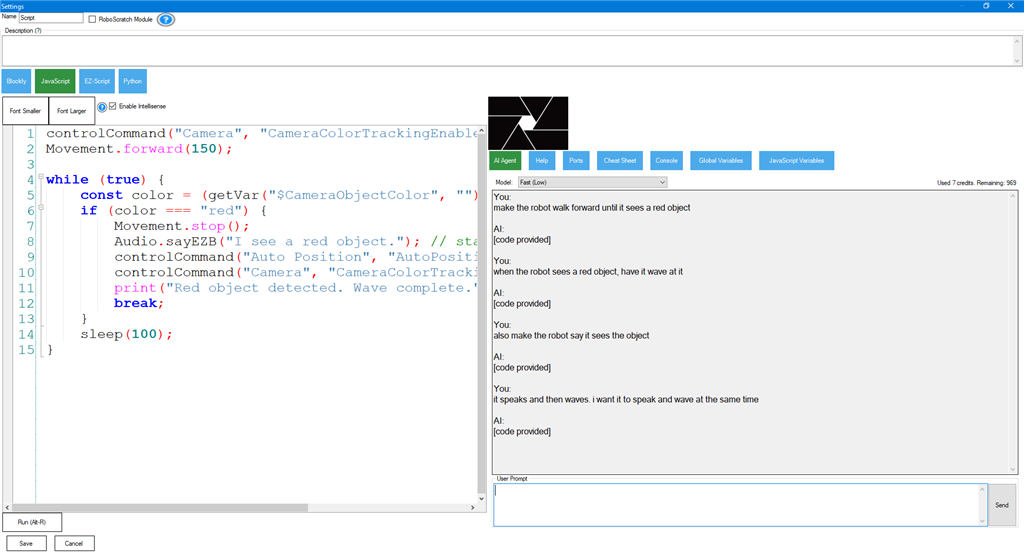
AI Scripting Help That Uses Your ARC Project
The AI Script Assistant receives your ARC project's variable names, port assignments, robot parameters and available Robot Skill commands. This gives it the context needed to suggest scripts for your hardware and project.
Review the suggested JavaScript or Python, check the port assignments and settings, and test it with your robot. You can ask follow-up questions or request changes in the same conversation.
Get ARC → Buy AI Credits → Read the DocsAI Script Assistant Features
Write and revise JavaScript and Python scripts from the ARC script editor.
Project-Aware Code Generation
The AI reads your global variables, robot parameters, EZB ports with board indexes, and the controlCommand() targets your Robot Skills expose. Generated scripts come back using the names that already exist in your project — ready to paste and run.
JavaScript or Python Robot Scripts
Choose the language that matches your script. The assistant targets only the dialect you picked — JavaScript or Python — and never mixes in legacy EZ-Script. Output is always in fenced code blocks, ready to paste.
ARC Scripting API Built In
The full ARC scripting API reference is included with every request — sleep(), getVar(), setVar(), controlCommand(), port constants like d0–d23, v0–v99, ADC0–ADC7, and more. The assistant uses real APIs, not invented ones.
Multi-Turn Conversations
Iterate. "Make it slower," "now add a sensor check," "explain that loop." The assistant keeps the full thread of your conversation so each follow-up builds on the previous answer.
Fix, Refactor, and Explain Robot Code
Paste a broken script and ask for a fix. Hand it a working script and ask for an explanation, a simpler version, or a new feature added. The assistant works on the code you have, not a blank page.
Safe by Default
The assistant refuses to write code that bypasses ARC safety boundaries, hard-codes secrets, or performs destructive system operations. Your project context stays server-side — no API keys, no model pricing, no leakage.
How the AI Script Assistant Works
Three steps from natural-language prompt to running robot.
Ask in Plain Language
Open the AI Script Assistant from the ARC script editor and describe what you want — "make the servo sweep from 1 to 180 then back" or "fix this script, it stops responding after the second loop."
ARC Sends Project Context
Your prompt is bundled with the live state of your project — globals, EZB ports, robot parameters, controlCommand() targets, and the script you're working on — so the assistant has ground truth, not guesses.
Paste, Run, Iterate
The reply comes back in a fenced code block ready to drop into your script. Don't like it? Ask for changes — the conversation continues until the code is exactly what you wanted.
Get the Best Results — Configure Your Project
The AI Script Assistant is only as good as the context you give it. A few minutes spent describing your project pays off in every script the assistant ever generates for you.
Describe Your Global Variables
For every global variable, fill in the description field. The assistant reads it as authoritative meaning — without it, the AI can only guess what $batt or $mode represents.
Add Descriptions to EZB Ports
Tag each configured port with what it physically controls. The assistant uses the description to choose the right port for the task — and respects the board index so multi-board projects stay correctly wired.
Fill In Robot Parameters
Servo limits, joint ranges, gear ratios, max speeds — anything the AI must honor when generating motion code goes in the robot parameters list. The assistant treats these as hard constraints.
Use Meaningful Skill & Command Names
The assistant sees the controlCommand() targets exposed by every skill in your project. Rename skills to describe what they do — "HeadServo" beats "Servo Movement Panel" — and the AI calls them correctly the first time.
Pick the Right Language Up Front
Set the script's language to JavaScript or Python before opening the assistant. The system prompt is tuned to the selected dialect — switching mid-conversation means the assistant has to relearn your preference.
Stay in the Same Session for Follow-Ups
Keep the conversation open when you want to iterate. ARC sends a stable session id with every turn so the AI remembers what you already discussed — closing the assistant and reopening it starts fresh.
Include the Current Script
When asking for changes to existing code, leave the current script in the editor — ARC sends it as context. The assistant modifies what you have instead of regenerating from scratch.
Every Conversation. Every Code Change. Saved.
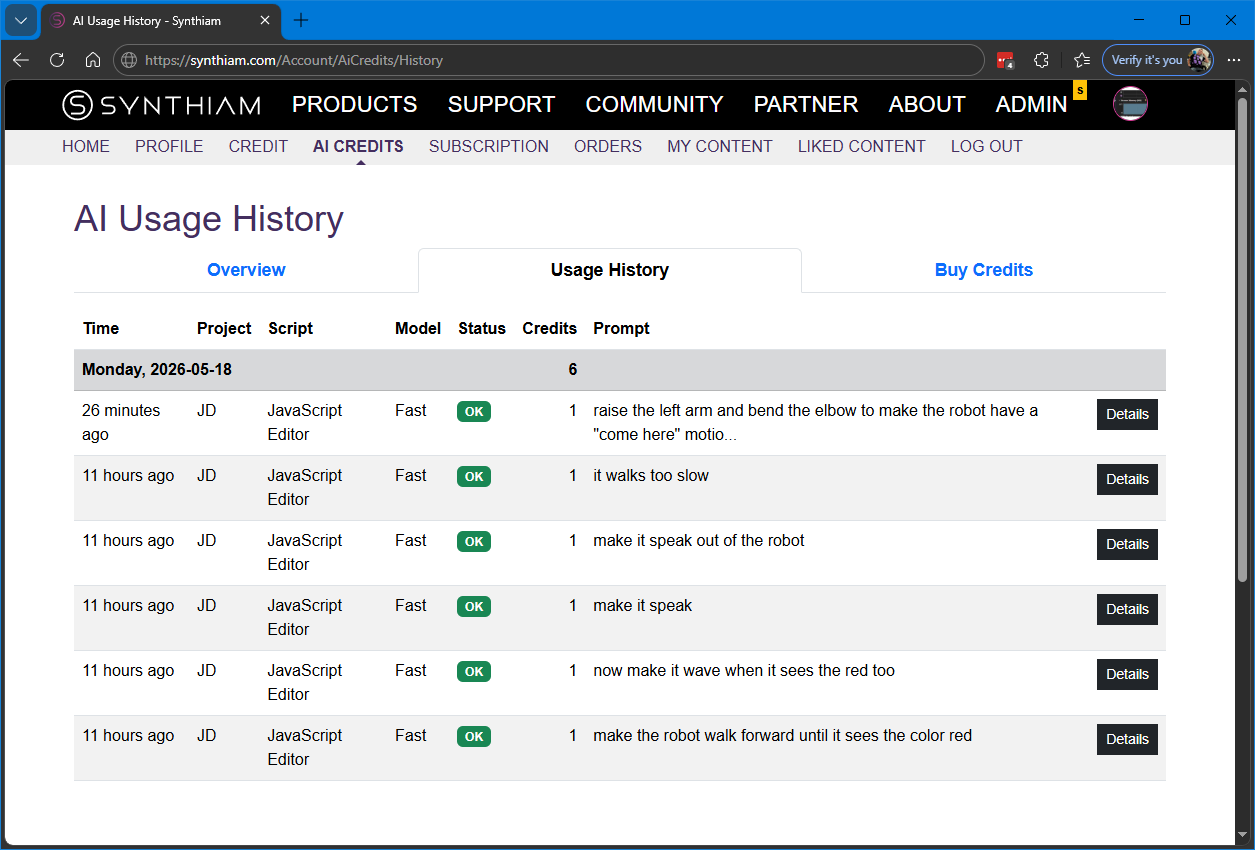
Open the AI Script Assistant history at any time to revisit a past conversation — see the natural-language prompt you sent, the ARC project context that went with it, the JavaScript or Python script you were working on, and exactly what the assistant wrote back.
- Browse every prompt you've sent and every reply the assistant returned
- See the script that was attached to each turn — recover code you replaced or lost
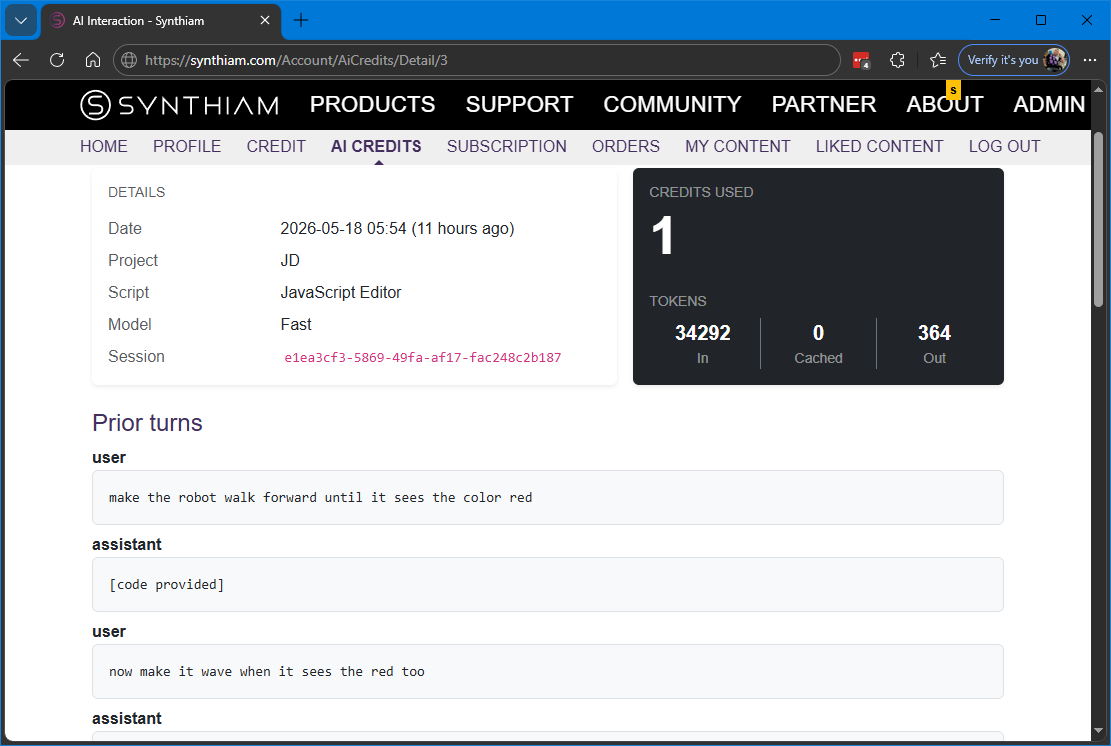
- Inspect token usage and credit cost per turn for full transparency
- Multi-turn sessions stay grouped so a long iteration reads as one conversation
- Filter by project name, script name, or model so finding an old answer takes seconds
Simple, Transparent Credit Billing
The AI Script Assistant runs on a credit system. Pick the model that fits the job — a small fast model for quick fixes, a frontier reasoning model for complex multi-step generation — and pay only for the tokens you actually use.
- • You pick the model. Multiple OpenAI models supported, each with its own credit rate based on real token costs.
- • You see the cost. Every conversation turn logs token counts and credits used, visible in your history.
- • Failed requests are free. If the provider returns an error, you're not charged — only successful replies cost credits.
- • No surprise spend. Requests that would exceed the selected model's input window are rejected before any provider call is made.
Prefer your own AI agent? ARC and ARCx are MCP servers
The AI Script Assistant lives inside ARC. With the Model Context Protocol, the AI you already use outside ARC can do even more: Claude Code, Cursor, VS Code Copilot, ChatGPT or any MCP client can control the robot and program it. Create projects, add and configure Robot Skills, write and test scripts, send control commands, see through the camera, and build new skills and firmware with a coding agent.
Explore the MCP server → Connect your AI →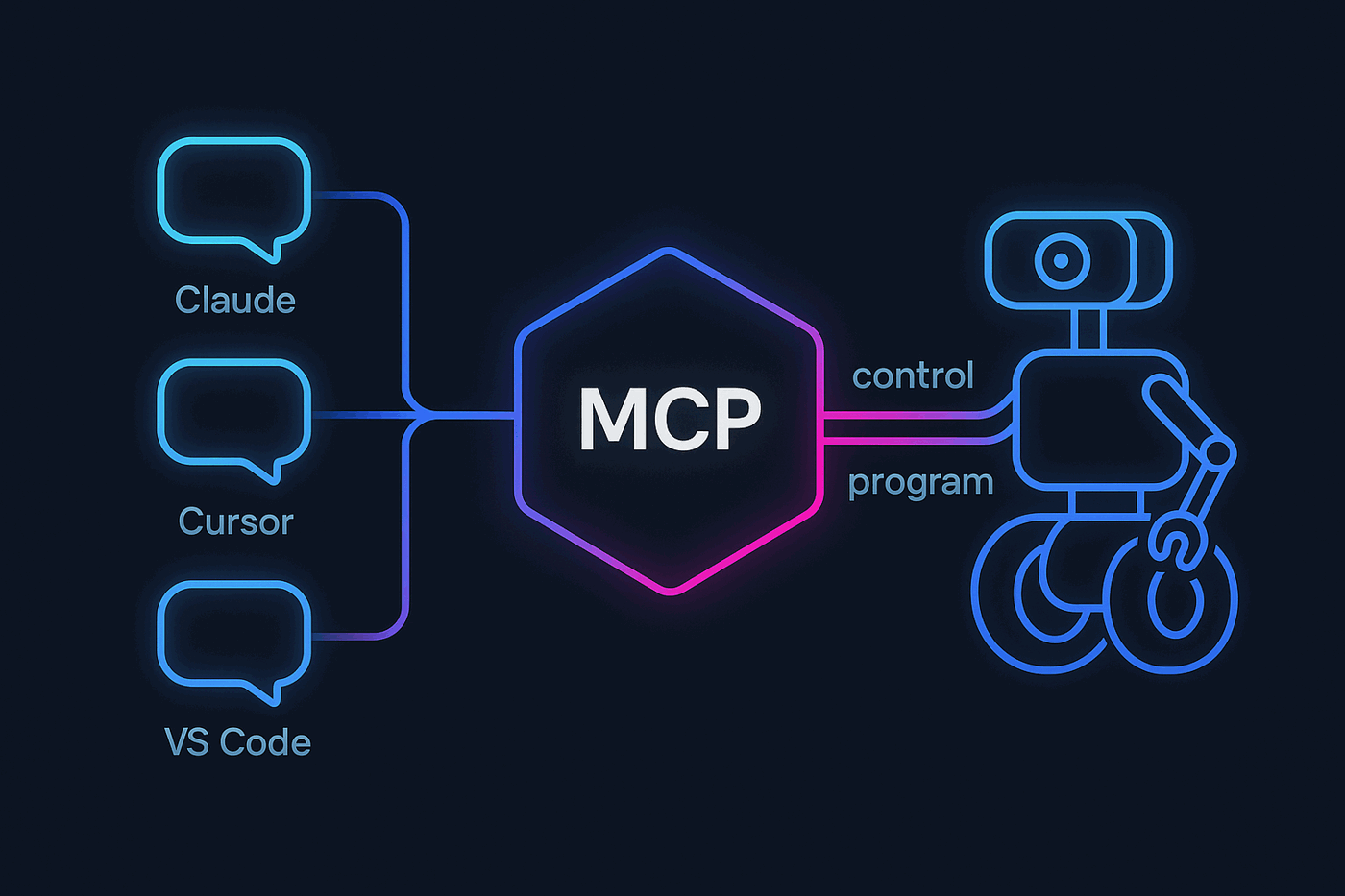
Programming with ARCx? Meet Athena
ARCx — Synthiam's robot programming software for robot builders, enterprise and industry on Windows, Linux and Raspberry Pi — has the Athena AI assistant built in. Athena reads your ARCx project, helps write scripts and configure Robot Skills, and shows every change it proposes for your approval before it runs.
Explore ARCx → Download ARCx →Why robot builders choose us
Since 2010, we have worked side by side with robot builders around the world. More than 4 million robot connections have shown us what works, what breaks and what builders actually need, and every lesson has gone back into the software. Through the Robot Skill Store, we connect 600+ partners directly with those builders, so every new sensor, service and AI integration one partner adds is ready for everyone.
The secret is simple: the more our software is used, the better it gets.
ARC: proven by the community
The Windows platform for hobbyists, makers, students and teachers, with the full Robot Skill Store, Blockly, JavaScript and Python, and ARC Pro for advanced projects and courses.
ARCx: everything we learned, rewritten
Our next-generation platform, rewritten from the ground up with modern technology. It runs on the robot itself on Windows, Linux or Raspberry Pi, talks to industrial PLCs, and is programmed from a browser on your network or from anywhere.
ARC-Lite: built for learners
Our free robotics education app for Android, Chromebook and Windows. Guided lessons and Blockly activities teach robot programming step by step, then grow into JavaScript and Python. No robotics background required.
Use the AI Script Assistant in ARC
The AI Script Assistant ships free with Synthiam ARC. Download ARC, open any JavaScript or Python script, and ask the assistant for the robot code you want — using the globals, ports, and Robot Skills your project already defines.
Get ARC Free → Buy AI Credits → Read the Docs