


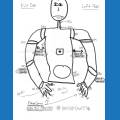
is it possible to chow the id number to in this port?
 QR Code Generator
— Create customizable QR codes for ARC, display/scan via Camera Control, trigger scripts on recognition and save decoded text to variables.
Try it →
 Resolved by Rich!
is it possible to chow the id number to in this port?
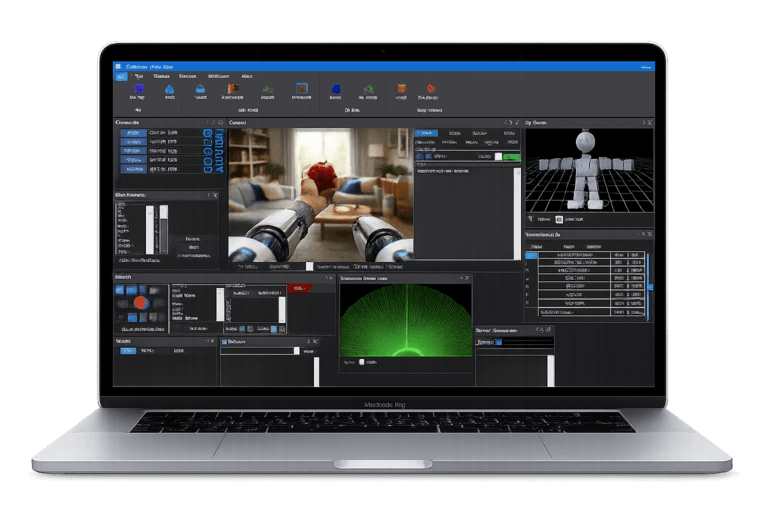
Doesn't "port edit mode" display the ports?
its like in the pic
sorry found it.is there a page whit the ports for jd on?
Rich was referring to the top right corner where it says "Port Edit Mode"... Check the box and see what it does....
EDIT That's it... Rich solved it for you....
ah thank you RR and rich .
is there a page whit id numbers on from jd?
If you go through the instructions which pop up when you open the JD project it tells you which servos and accessories connect to which ports.
If you open up the designer when you have opened the JD project you can click on any part and it will tell you which ports need connecting to which piece.
found it.thank you