Couldn't find answer to this question.
I know I can have more than 1 micro-controller on a Robot. How do I install it and how do I operate them both at one time.
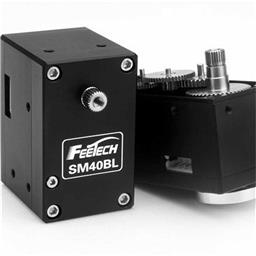 Feetech Serial Bus Servo
— Control Feetech SC serial bus smart servos via EZB UART or PC COM port with ARC virtual ports, speed, position, release, and acceleration.
Try it →

Couldn't find answer to this question.
I know I can have more than 1 micro-controller on a Robot. How do I install it and how do I operate them both at one time.
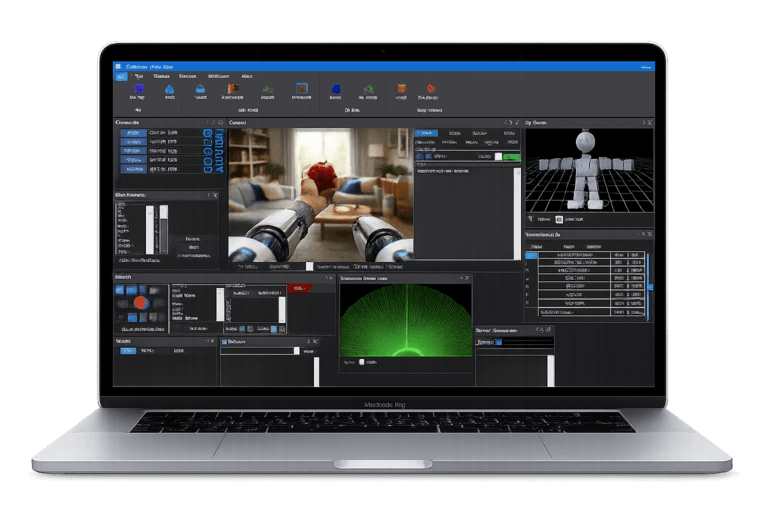
I assume you're talking about the ezb4 or iOTiny?.... It's quite easy... Just add them in the connection control. You can quickly add 4 more but I believe 256 (or more) can be done... Did you notice the connection control shows 5 connection slots available? Now you know what they are for... This is how you connect more than one ezb4 to your project (assuming you are in client mode that is)... There are variations to this but this is the easiest way...
In Client mode... Each ezb4/iOTiny will have it's own IP address.
As an example to move a servo on board 1 (instead of default board 0) you specify the board # eg...
Thank you I just wanted to know if and how to connect them.
I also have had problems changing IP address on the . The instructions on the tutorial seem different than the actual experience I am having with my update software. When I type in the IP address as instructed, I do not get a form like shown on tutorial. Mine does not have a place to change IP address like the tutorial does.
Can I change the IP address on the connection control?