





Connecting EZ-Builder
EZ-Builder will now need to know the IP Address of each EZ-B of the robots connected to the WiFi network. Ensure your laptop is connected to the WiFi network as well.
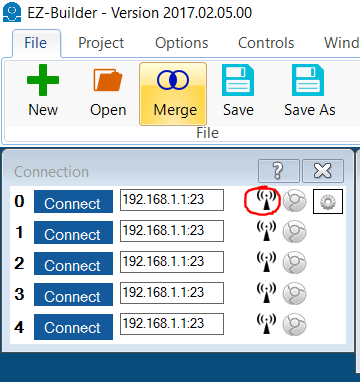
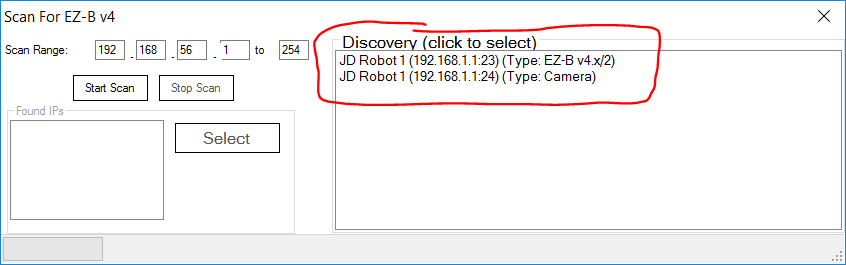
Step 1 Load EZ-Builder. Locate the Client Scan Tool icon in the Connection Control. Press the icon for the first EZ-B index.
Step 2 Each EZ-B will be displayed as the broadcasts are received. The EZ-B's will broadcast their system name, which was entered for each robot in the previous step of this tutorial. This helps you identify all of the robots.
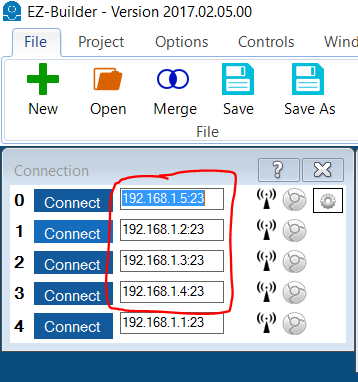
Repeat For Each Robot Repeat this process for each robot. We will add the SIX robots to index 0 and 1, and JD robots to index 2 and 3. When complete, each index of your connection control for 0, 1, 2 & 3 will have unique IP addresses.