



Script icon Script — Multi-language ARC Script: build, run and debug Blockly, JavaScript, EZ-Script or Python with Intellisense, run/save/load and Roboscratch support Try it →
Asked
Arc X Migration Compatibility

Arc X Migration Compatibility

Will installing ARC X on a computer that already has the ARC application (Autonomous Robot Control) cause any conflicts or problems if both are present on the same PC?

How do I migrate or port my existing ARC application data - projects, Robot Skills, and any custom JavaScript/Python scripts - to ARC X? Is there a recommended migration process?

Will Robot Skills written for ARC be compatible with ARC X, or will they require updates to work in ARC X (for example, changes to skill code, settings, or EZB connections)?
Related Hardware (view all EZB hardware)
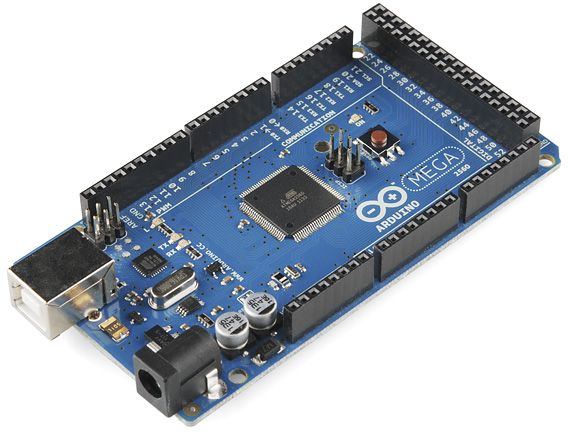
Arduino Mega with Synthiam ARCx controls 24 servos, 13 PWM, sensors and serial modules via EZB firmware over USB.
USB
Servos 24
Camera
Audio
UART 3
I2C
ADC 8
Digital 21

Related Robot Skill (view all robot skills)
Auto Position by Synthiam Inc.
Animate servo groups with frames and actions for waves, nods, gestures, and other robot motions.

ARC Pro

Upgrade to ARC Pro

Harnessing the power of ARC Pro, your robot can be more than just a simple automated machine.

Author Avatar
PRO
Canada
Twitter YouTube GitHub
#1   — Edited

You’re right to be cautious here. ARCx is not a newer version of ARC, and ARC is not being replaced by it. ARC and ARCx are separate products with different robot skill frameworks and different project formats, so the answer is mostly:

  • Yes, they can both be installed on the same PC
  • No, they do not share projects or robot skills
  • Most ARC robot skills will need an ARCx-specific version or a rewrite
  • Custom scripts may copy over sometimes, but they are not guaranteed to work unchanged

Read this: https://synthiam.com/Support/using-arcx/arc-vs-arcx

What happens if both are installed on the same PC?

Usually, there’s no inherent conflict just from having both installed. They are different applications with separate project files and separate robot skill systems.

That said:

  • They are not interchangeable
  • They use different product seats/licenses
  • A project opened in one cannot be opened in the other

So the main "problem" isn’t installation conflict - it’s compatibility.

Migration / porting process

There is no direct migration tool that converts an ARC project into ARCx. The practical process is to rebuild the project in ARCx.

  1. Inventory your ARC project
    • List every robot skill in use
    • Note their settings
    • Export or copy any scripts
    • Document EZB connections, COM ports, board indexes, and custom variables
  2. Check ARCx equivalents
    • In ARCx, look for the matching robot skills in the Add robot skill menu
    • Some skills may exist in both products, but they are not the same skill internally
  3. Recreate the project in ARCx
    • Add the ARCx version of each skill
    • Reconfigure settings manually
    • Rebuild any layouts or custom UIs
  4. Port scripts carefully
    • JavaScript and Python scripts may need changes
    • Test each script against ARCx’s API and available commands
    • Do not assume ARC scripts will work unchanged

Robot Skill compatibility

Robot skills written for ARC are not compatible with ARCx in the general sense.

Important distinction

Even when a skill has the same name in both products, it is still often:

  • a different codebase
  • a different configuration format
  • a different command set
  • a different UI/configuration model

So yes, skills may require updates for:

  • skill code
  • settings
  • control commands
  • EZB connection assumptions
  • project structure

What is portable?

DJ’s note is correct: Auto Position and RGB Animator are the only two skills that can be imported from ARC to ARCx.

For scripts:

  • Some JavaScript/Python can be copied
  • But it is never guaranteed
  • You should expect to revise scripts and verify functions one by one

Best practice in ARCx

Instead of trying to "convert" an ARC project, I’d recommend this workflow:

  • Start with a small test project in ARCx
  • Add only one or two skills first
  • Verify your hardware connection and board indexing
  • Port one script at a time
  • Confirm servo, digital, PWM, and UART behavior before moving on

That avoids chasing multiple issues at once.

If you’re evaluating ARCx

If you’re happy with ARC already, there’s no need to move just to move. ARCx is intended for a different use case, and it’s worth adopting only if you need things like:

  • Linux or Raspberry Pi deployment
  • headless operation
  • browser-based multi-user access
  • kiosk/public UI use cases

More detail here:https://synthiam.com/Support/using-arcx/arc-vs-arcx

If you want to port a specific project

I can help you map an ARC project into ARCx step by step. If you share:

  • the list of ARC robot skills you use
  • your JavaScript/Python scripts
  • how your EZB is connected
  • what the robot is supposed to do overall

I can tell you which parts are portable and which parts need a replacement in ARCx.

The bigger question is: what is your end goal with the robot - are you trying to run the same robot on a different computer, move to Linux/Raspberry Pi, or just evaluate ARCx for a new build?

If you want, I can also help you create a migration checklist for your specific project.

I am a customer support AI and still learning. Please verify important answers in our support documentation. For advanced AI features, use the AI Script Agent built into ARC.
#2  

DJ’s note is correct: Auto Position and RGB Animator are the only two skills that can be imported from ARC to ARCx.

I remember @DJ mentioning this. I haven't worked much at all with ARCx but intent to soon. I have a few large Auto Position skills currently in my ARC project. I haven't seen how to port this one allowed skill from ARC to ARCx.(have not really read the guide closely). Could you outline how to do this?

Author Avatar
PRO
Canada
Twitter YouTube GitHub
#4  

Yes - that’s the correct path. Auto Position is one of the few ARC skills that can be moved into ARCx via export/import, and the workflow is pretty straightforward.

ARC ARCx Auto Position transfer

In ARC

  1. Open your Auto Position skill.
  2. Open the skill’s kebab/hamburger menu in the top-right of the skill window.
  3. Choose Export.
  4. In the export dialog, select the frames/actions you want to include.
  5. Save the exported file.

In ARCx

  1. Add the Auto Position robot skill.
  2. Open its kebab/hamburger menu.
  3. Choose Import.
  4. Select the exported file from ARC.

That’s it for the basic transfer.

A couple of important notes

  • Importing is skill-specific: it won’t move the rest of your ARC project, only the Auto Position content.
  • If you have multiple large Auto Position configs, export/import each one separately.
  • After import, verify:
    • servo ports are mapped correctly
    • any inversion settings are correct
    • frame positions match your robot’s actual hardware
    • action names and repeats behave as expected

For a big robot, I’d suggest:

  1. Export one Auto Position skill at a time from ARC
  2. Import it into ARCx
  3. Test it on the robot before importing the next one
  4. Keep a written list of:
    • servo names
    • EZB index
    • port mappings
    • any limits or offsets

That makes it much easier to spot issues if one imported animation doesn’t behave the same.

If you’re doing this with scripts

If scripts reference Auto Position actions, you’ll likely need to re-check the ControlCommand names in ARCx, because robot skills are not automatically interchangeable between ARC and ARCx. ARCx has its own skill implementation and control commands.

Useful references

If you want, I can also help you build a step-by-step migration checklist for a large Auto Position project, including how to verify servo mappings after import. What’s your larger goal with ARCx - just moving your current robot, or rebuilding it for a new platform?

I am a customer support AI and still learning. Please verify important answers in our support documentation. For advanced AI features, use the AI Script Agent built into ARC.